 Moth
Advanced settings and security
Set up shell defaults, logging, clipboard access and close confirmations.
Shell, directory and environment
In Settings → Advanced you can choose whether to start a login shell, set a starting directory and add environment variables for new sessions.
[advanced]
loginShell = true
workingDirectory = ""
inheritWorkingDirectory = true
sessionRecovery = true
logDirectory = ""
copyOnSelect = false
allowRemoteClipboard = false

[advanced.environment]
EDITOR = "vim"
New windows use workingDirectory; leave it empty for your home directory, or enter an absolute path to an existing folder. With inheritWorkingDirectory = true, new tabs and splits use the active local shell’s directory when available. An exited or unavailable source falls back to the configured folder, then your home directory if that folder is gone. This preference is saved with each profile. Your environment overrides are applied last, so an explicit TERM or COLORTERM value takes precedence. Changes affect new shells, not ones already running.
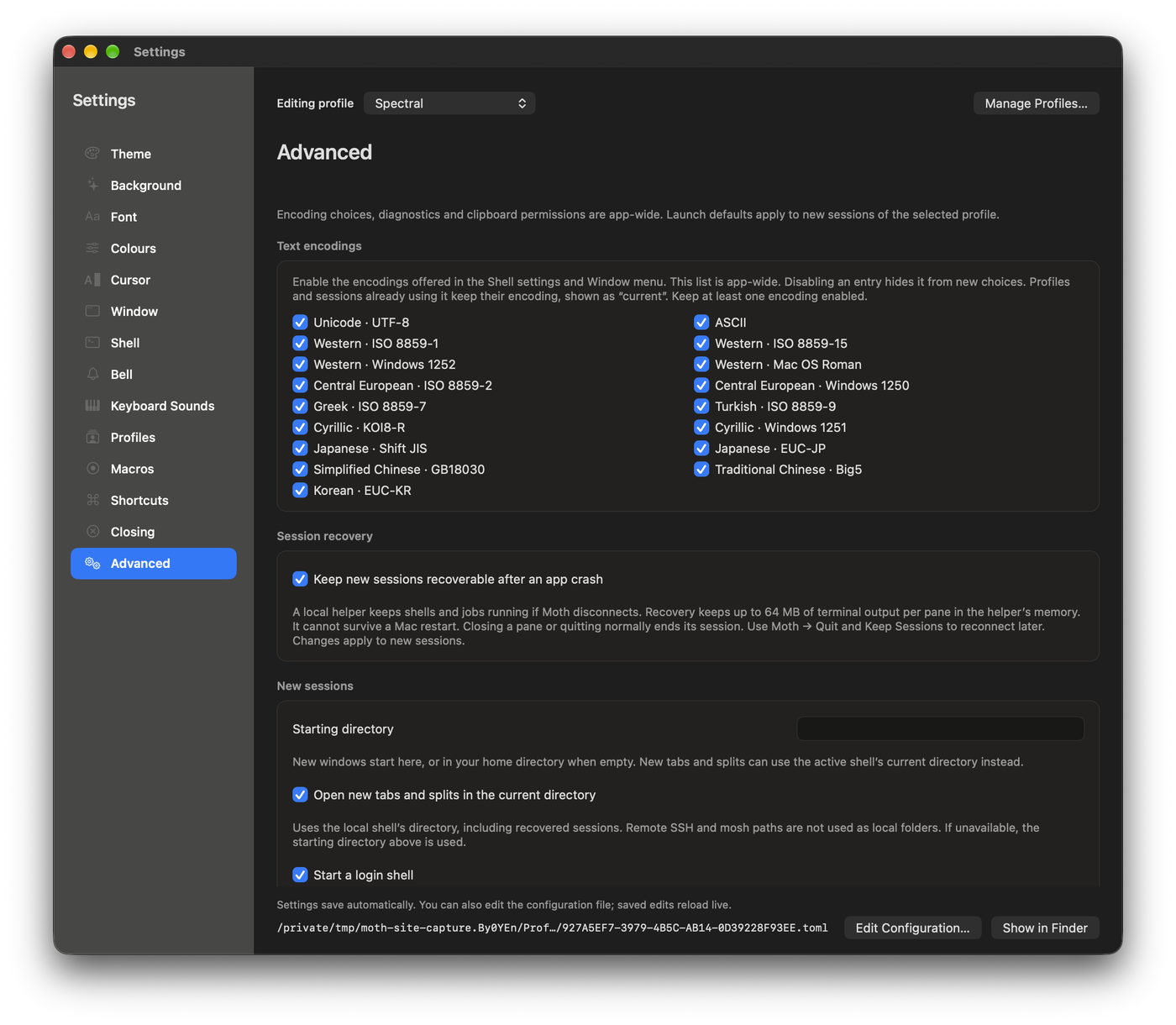
Advanced → Terminal compatibility also controls VT100 double-width and double-height lines. This preference applies to all profiles and updates open windows immediately.
Clipboard and secure input
Terminal programs can’t write to your clipboard through OSC 52 unless you enable advanced.allowRemoteClipboard. To copy text as soon as you select it, turn on advanced.copyOnSelect.
Moth → Secure Keyboard Entry enables macOS secure input while Moth is active. Moth releases it when you switch away or quit, and requests it again when you return if the option is still on. This toggle lasts for the session and isn’t saved in the file. The terminal program you’re typing into still receives your input.
Raw output logs and exports
Set advanced.logDirectory to an existing folder to save raw terminal output. Each pane creates a Moth-UUID subfolder containing sequential log-N chunks. Leave the setting empty to turn logging off. Read-only previews don’t create logs. Logs can contain sensitive output, and Moth doesn’t delete them automatically.
Use File → Save Scrollback… (⌘S) or Save Selected Text… to export plain UTF-8 text. Escape sequences are removed and soft-wrapped rows are joined. Page Setup… (⌘⇧P) and Print… (⌘P) use the native Mac dialogs and a plain-text layout.
Closing sessions
Moth checks the local shell’s child processes and foreground process group before closing a session. It skips confirmation only if every detected program is on your allowed list. Allowing zsh, for example, doesn’t also allow vim or a background sleep process.
[closeConfirmation]
enabled = true
ignorePrograms = ["zsh", "bash", "fish", "sh", "dash", "tcsh", "csh", "nu"]
Use exact executable names or absolute paths; wildcards aren’t supported. Moth warns if it can’t identify a live process. Set enabled = false to turn these confirmations off. This check can’t see remote SSH jobs or detached daemons.
By default, closeOnExit is true: when the shell or directly launched program exits, its pane closes and any empty splits, tabs or windows are removed. Other sessions keep running. Set it to false if you want to keep the output and exit status on screen. Finishing a command inside a shell doesn’t close the shell.
Shell → Reset Terminal (⌘R) clears the display and history and resets terminal modes and cursor visibility. It leaves the program running and doesn’t send a shell command.